Testing Access
For testing and evaluation purposes, use the following access methods and credentials.
WeChat Mini Program (Customer Testing)
Access the WeChat Mini Program for customer testing:
- Open WeChat app on your mobile device
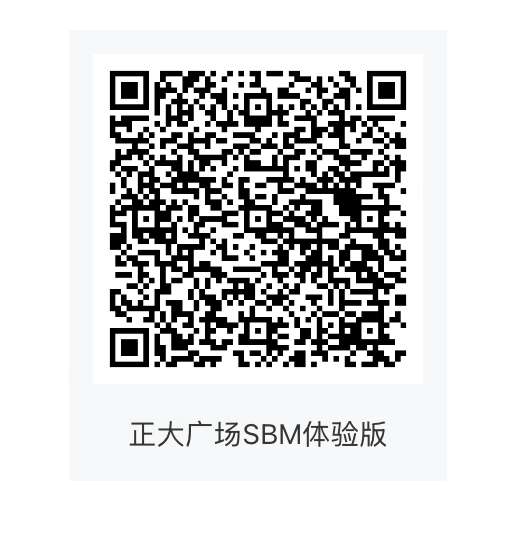
- Scan the QR code below using WeChat's built-in scanner
- The SBM CRM Platform Mini Program will open automatically
- Authorize WeChat login when prompted
- Start testing customer features
正大广场SBM体验版 (SBM Experience Version)
Scan the QR code with WeChat to access the test Mini Program. The QR code should be provided by your test administrator or displayed in the testing environment.
- Open WeChat app
- Tap the "+" icon in the top right
- Select "Scan" (扫一扫)
- Point your camera at the QR code above
- Tap the notification to open the Mini Program
SBM Backend Admin (Administrator Testing)
Access the web management interface for administrative testing:
Admin URL: crm-admin-dev.superbrandmall.com (or provided test URL)
Test User Accounts
Super Admin
Role: Super Admin
Username: super-admin@example.com
Password: super-admin-123
Permissions:
- Full system access
- All administrative functions
- User management
- System configuration
Admin
Role: Admin
Username: admin@example.com
Password: admin-123
Permissions:
- Campaign management
- Customer management
- Analytics access
- Limited system configuration
Tenant
Role: Tenant
Username: tenant@example.com
Password: tenant-123
Permissions:
- Tenant-specific data access
- Reward management
- Booking management
- Limited customer view
Login Instructions
- Navigate to the admin URL
- Enter your test credentials (username and password from above)
- Click Login
- You'll be redirected to the Admin Dashboard based on your role
These are test credentials for evaluation purposes only. Do not use these credentials in production environments.
Testing Checklist
Customer Testing (WeChat Mini Program)
- Successfully scan QR code and open Mini Program
- Complete WeChat authorization
- View and edit customer profile
- Check points balance and history
- Browse reward catalog
- Test points redemption
- View membership tier and benefits
- Participate in challenges or gamification features
- Receive and view notifications
Administrator Testing (Web Management)
Super Admin
- Login with Super Admin credentials
- Access all system modules
- Manage user accounts
- Configure system settings
- View analytics dashboard
- Manage customer profiles
- Create and manage campaigns
Admin
- Login with Admin credentials
- Access campaign management
- View customer data
- Access analytics (limited)
- Verify restricted access to system configuration
Tenant
- Login with Tenant credentials
- Access tenant-specific data only
- Manage rewards
- Manage bookings
- Verify limited customer view
Troubleshooting
WeChat Mini Program Issues
QR Code Not Scanning:
- Ensure you're using WeChat's built-in scanner (not a third-party scanner)
- Check that your WeChat app is up to date
- Ensure good lighting and camera focus
- Try refreshing the QR code if it has expired
Authorization Failed:
- Check your WeChat account permissions
- Ensure you have granted necessary permissions
- Try logging out and scanning again
Mini Program Not Loading:
- Check your internet connection
- Clear WeChat cache and try again
- Contact support if the issue persists
Admin Portal Issues
Cannot Access Admin URL:
- Verify the URL is correct:
crm-admin-dev.superbrandmall.com - Check your internet connection
- Ensure you're using HTTPS if required
- Contact your system administrator if the URL has changed
Login Failed:
- Double-check your username and password
- Ensure you're using the correct credentials for your role
- Check if your account has been disabled
- Try clearing browser cache and cookies
Access Denied:
- Verify you're using the correct role credentials
- Check if your role has the necessary permissions
- Contact your system administrator for role verification
Security Notes
- Never share test credentials in production environments
- Change default passwords if you have production access
- Use strong passwords for production accounts
- Enable two-factor authentication when available
- Report security issues immediately to your system administrator
Support
If you encounter issues accessing the test environment:
- Technical Issues: Contact the development team
- Access Problems: Contact your system administrator
- Feature Questions: Refer to the User Guide or Developer Guide
For production access, see the Getting Started Guide for proper setup instructions.